

MEXC Google Authenticator Guide: Switching to a New Phone
Overview
- Google Authenticator must be transferred before changing phones. If the transfer is not completed in advance, the new phone will not be able to generate the authentication codes required to log in to MEXC.
- To transfer Google Authenticator, use the "Transfer accounts" feature on the old phone to generate a QR code, and then scan the QR code using the new phone.
- This process requires access to both the old and the new phones, and Google Authenticator on the old phone must still function normally.
- The entire transfer process takes approximately 5 minutes.
Why You Need to Transfer Google Authenticator When Switching Phones?
MEXC requires users to enable two-factor authentication (2FA) to protect their account assets. At least two of the following must be linked: a mobile phone number, an email address, or Google Authenticator.
After switching to a new phone, if you did not previously sign in to a Google account and enable automatic sync, Google Authenticator on the new phone will be empty (with no linked accounts) and will not be able to generate the authentication codes required for your MEXC account. As a result, you may be unable to log in to MEXC or conduct trading as normal. To avoid this situation, you need to transfer the data in Google Authenticator from your old phone to your new phone before switching devices.
How to Transfer Google Authenticator to a New Phone
The following instructions use an iOS device as an example. The steps for Android are generally the same, with only minor differences in the interface.
Step 1: Install Google Authenticator on the New Phone
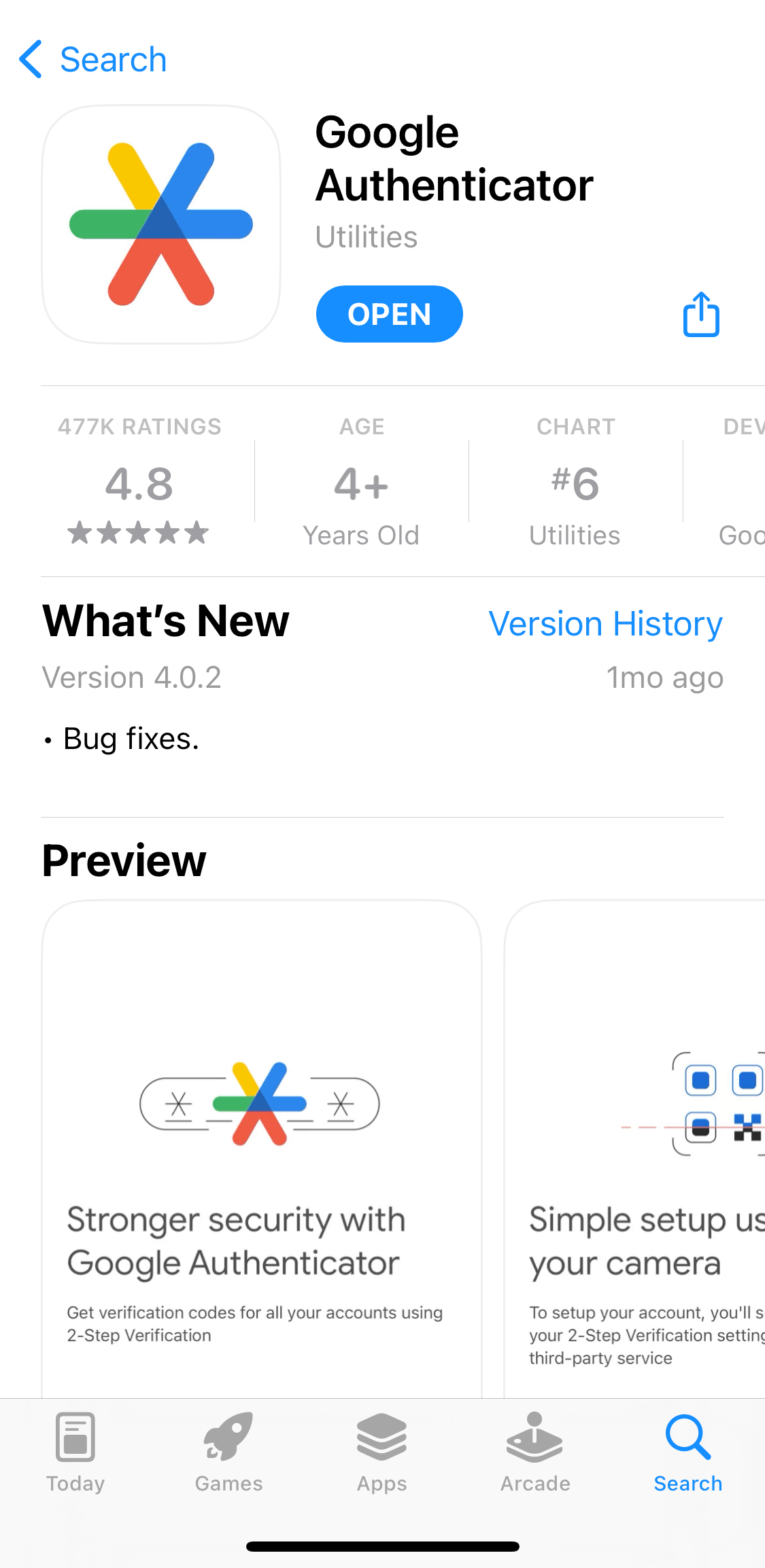
For iOS users, open the App Store and search for Google Authenticator to download and install the app. For Android users, open the Google Play Store and search for Google Authenticator to download and install the app.
Step 2: Open Google Authenticator on the Old Phone
Open the Google Authenticator app on your old phone and tap the menu icon (≡).
Step 3: Access the Transfer Accounts Feature
Tap Transfer accounts, select Export accounts, and then tap Continue. The system will require you to verify your identity using Face ID or by entering your device password.
Step 4: Select the Accounts to Export
By default, all accounts are selected. If there are any account codes you do not want to export, tap the checkmark (✓) to deselect them. After confirming your selection, tap Export. A QR code will then be displayed on the screen.
Step 5: Scan the QR Code with the New Phone
Open Google Authenticator on the new phone, tap the + button, select Scan a QR code, and use the new phone's camera to scan the QR code displayed on the old phone's screen. If you are exporting a large number of accounts, you may need to scan multiple QR codes. After each scan is completed, tap Next on the old phone to continue.
Step 6: Complete the Transfer and Remove Accounts from the Old Phone
After you've completed scanning the QR codes, the old phone will prompt you to either remove or keep the exported accounts. For account security, it is recommended to select Remove all exported accounts (Recommended) and then tap Done. This ensures that the accounts and their authentication codes are no longer stored on the old phone, which helps prevent unauthorized access.
Tap OK on the new phone to complete the entire Google Authenticator account transfer process.
For more information about Google Authenticator, you may also refer to the following articles: