

Resetting Security Verification
1. Web Security Reset Process
1.1 Reset Process for Logged-Out Accounts
If you find that your security verification methods (such as email codes, SMS codes, or Google Authenticator) are unavailable during login, please follow the steps below to reset your security items.
Note: If you have forgotten both your password and your security items, please prioritize the Security Item Reset. Once the reset is complete, you may use the [Forgot Password] feature to reset your password.
Process Overview: Log in to your account on the Homepage → Select Forgot Password → Enter your Email/Phone Number and click Next → Click Reset Security Verification → Select the security items to reset → Follow the on-screen instructions to complete the process.
Detailed Steps:
Step 1: Navigate to the Security Verification Page
Click Log In on the MEXC homepage. After entering your account password, you will be directed to the Security Verification page. Click the Reset Security Verification link on the page.
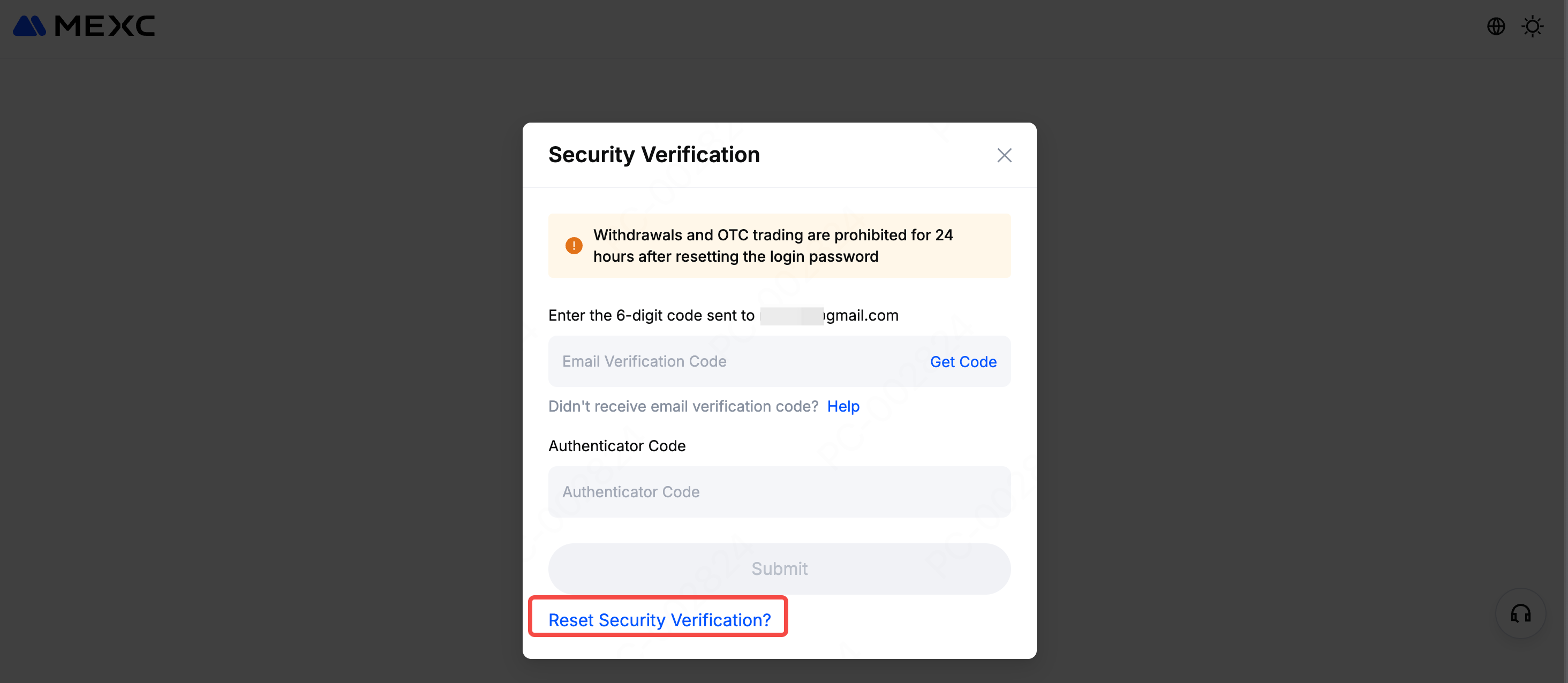
Step 2: Select Security Items to Reset
Check the box next to the security items that are currently unavailable, then click Reset. If you have lost access to your email, Google Authenticator, and phone number simultaneously, you may select multiple items to reset them all at once.
Step 3: Verify Remaining Security Items
The system will prompt you to verify other security items linked to your account. Click Get Code to receive a verification code, enter it in the field provided, and click Confirm. Please note that verification codes are valid for 15 minutes.
Note: If you have completed Advanced KYC Verification, you can skip code verification. Simply complete a facial recognition scan to finalize the reset after selecting the items.
Step 4: Complete the Account Information Questionnaire
To ensure the security of your account, you may be required to complete the Account Information Questionnaire as prompted. This includes details such as Recent Trades, Asset Holdings, or Anti Phishing Code Set for Account. Then press Next.
Step 5: Submit Supplementary Proof Materials
Please proceed to fill out the Supplementary Proof Materials section, which requires information such as Proof of Funding Source, Proof of Funding Destination, Proof of Notification Records, and Proof of Fiat Transactions, along with Other Supplementary Proofs (Optional). After filling out the forms, click Next.
Step 6: Submit Personal Information and Identity Verification
Please complete the KYC verification process according to the following requirements:
1) Enter Contact Email: Input your new email address or phone number and request a verification code. Note: You are not allowed to use the email address currently bound to your account. After clicking Get Code, check your inbox for the 6-digit code and enter it below.
2) Upload ID Document: Select your ID type and upload a clear photo of the front side (the side with your portrait). Ensure all four corners are visible and the text is legible, with no glare or obstructions. If your account has already completed KYC, you are required to use the same document submitted during that process.
3) Record a Verification Video: Record a Verification Video: Record a video of yourself holding your ID document and a blank sheet of paper. On the paper, clearly write: Your MEXC Account UID, email, and phone number. Please also include the current date as well as the reason for resetting your security items.
4) Confirm Terms: Once all information is complete, check the box for I have read and understood the terms.
5) Submit Application: Click Submit to finalize your request.
Once submitted, our support team will review your request as soon as possible. We appreciate your patience
1.2 Reset Process for Logged-In Accounts
If you are currently logged in, please click your profile avatar on the homepage and select Security. Then, locate the security item you have lost and click Change.
On the modification page, simply click the Reset Security Verification link.
The reset process from this point forward is identical to the logged-out flow. Please refer to the Reset Process for Logged-Out Accounts section above for further instructions.
2. App Security Reset Process
2.1 Reset Process for Logged-Out Accounts
1) Launch the MEXC App, enter your account details, and tap Log In.
2) Select Forgot Password.
3) On the reset page, enter your account info again and tap Next.
4) On the verification screen, tap Reset Security Verification.
5) Check the box next to the security items that are unavailable, then tap Reset. If you have lost access to your Email, Google Authenticator, and phone simultaneously, you can select multiple items to reset them all at once.
6) Enter the verification codes for your remaining security items, then tap Submit.
To ensure the security of your account, you may be required to complete the Account Information Questionnaire, Supplementary Proof Materials, and Personal Information & Identity Verification as prompted during the reset process.
Account Information Questionnaire: Includes recent trade history, asset holdings, frequently used deposit and withdrawal addresses, the anti-phishing code set in your account, and your account nickname.
Supplementary Proof Materials: Includes Proof of Source of Funds, Proof of Destination of Funds, Notification Records, Fiat Transaction Records, and Other Supplementary Evidence (Optional).
Personal Information & Identity Verification: Includes providing a new email/phone number, uploading ID documents, recording a video holding your ID, and confirming the terms.
Once submitted, our support team will review your request as soon as possible. We appreciate your patience.
2.2 Reset Process for Logged-In Accounts
Open the MEXC App, go to the homepage, and tap profile avatar → Security. Inside the Security section, select the lost security item, and on the modification page, tap Reset Security Verification.
The reset process from this point is identical to the logged-out flow. Please refer to the Reset Process for Logged-Out Accounts section above for further instructions.